Google Search Console Guide for Business Owners
Set up Google Search Console, read the Performance and Page indexing reports, find quick SEO wins and follow a simple monthly check routine.
Google Search Console is Google's free tool for seeing how your website performs in Google Search: which searches show your pages, how many people click, which pages are indexed and what problems Google has found. This Google Search Console guide is written for business owners rather than SEO specialists. It covers how to set up the right property, how to keep ownership in your company's hands, which reports matter, and a 15-minute routine you can run once a month to catch problems early and spot quick wins.
In short
- Search Console is free and does not change your rankings by itself. It shows you data and problems so you can fix them.
- Choose a Domain property if you can add a DNS record; it covers every version of your site in one place.
- Make sure a company Google account is a verified owner. Give agencies and freelancers user access, not ownership.
- Submit your sitemap, then use the Performance report to find pages with many impressions but few clicks.
- Not every URL should be indexed. Check that your important pages are, and that the reasons for the rest make sense.
Google Search Console guide: what it does and does not do
Search Console shows how Google sees your site. You can use it to:
- See the search queries that show your pages, with clicks, impressions, click-through rate and average position
- Check which pages are indexed and why others are not
- Submit a sitemap and ask Google to recrawl a changed page
- Get alerts about security issues, manual actions and page experience problems
- See which sites link to yours
What it does not do: it does not rank your pages, it is not required to appear in Google, and it does not show what visitors do after they arrive. For on-site behaviour and enquiries, you need Google Analytics 4. Search Console tells you how people found you; GA4 tells you whether they then got in touch.
Domain vs URL-prefix property: which to choose
When you add a site, Search Console asks for a property type. Google's help page on adding a property explains the difference:
| Domain property | URL-prefix property | |
|---|---|---|
| Example | yourcompany.sg | https://www.yourcompany.sg/ |
| Covers | All subdomains (www, shop, blog) and both http and https | Only URLs that start with that exact address, including the protocol |
| Verification | DNS record only | Several methods: HTML file, HTML tag, Google Analytics, Google Tag Manager, DNS |
| Best for | Most businesses, if you can edit DNS | When you cannot reach DNS, or want a separate view of one section |
For a .sg or .com.sg domain, DNS is managed wherever your domain's nameservers point. That may be your registrar, your hosting company or a service such as Cloudflare. If you are not sure who controls it, our guide on domains and .sg registration explains how the pieces fit together.
Verifying your site on WordPress, Shopify and Wix
A Domain property is verified the same way on every platform: Search Console gives you a TXT record, you add it in your DNS settings, then click Verify. DNS changes can take a while to take effect, so try again later if it does not work at once.
If you use a URL-prefix property instead:
- WordPress. Google's Site Kit plugin can verify and connect Search Console for you. Most SEO plugins also have a field for the HTML verification tag.
- Shopify. Add the HTML meta tag to your theme's layout file, or verify the whole domain with DNS if your domain is connected through Shopify or a third-party registrar.
- Wix. Wix can connect your site to Search Console from its SEO settings, and also accepts the HTML meta tag.
Owners, users and keeping control of your property
This is the part most businesses get wrong. When an agency or freelancer sets up Search Console with their own Google account, the business may lose access when the relationship ends. Google's permissions help page describes these roles (there is also an "associate" type for linked services, which cannot view your data):
| Role | What they can do | Who should have it |
|---|---|---|
| Verified owner | Full control, proven with a verification token such as the DNS record | A Google account your company controls |
| Delegated owner | Same permissions as a verified owner, granted by a verified owner | A second company account, as backup |
| Full user | View all data and use most tools, including URL Inspection and sitemaps; cannot add users | Your web or SEO agency |
| Restricted user | View most data | Staff or consultants who only need to read reports |
To add someone, go to Settings, Users and permissions, then Add user. If a past vendor owns your property, add your own verified ownership through DNS. Owners can then remove users and other delegated owners. Note that a verified owner's access only ends when their verification token is removed, so also check the DNS records and site code for old tokens.
Submitting your sitemap
A sitemap lists the pages you want Google to find. WordPress (with most SEO plugins), Shopify and Wix all create one automatically, usually at /sitemap.xml or /sitemap_index.xml. In Search Console, open Sitemaps, enter the sitemap URL and submit.
Google can find pages without a sitemap, but submitting one may speed up discovery and lets you see whether Google could read it. Check back after a few days: the status should say Success, with a count of discovered pages roughly matching your site.
Reading the Performance report for quick wins
The Performance report (Search results) shows four numbers. Clicks is how often people clicked through to your site from Google. Impressions is how often your site appeared in results. CTR is clicks divided by impressions. Average position is the average position of your top result. The default view is the last three months, and you can go back up to 16 months.
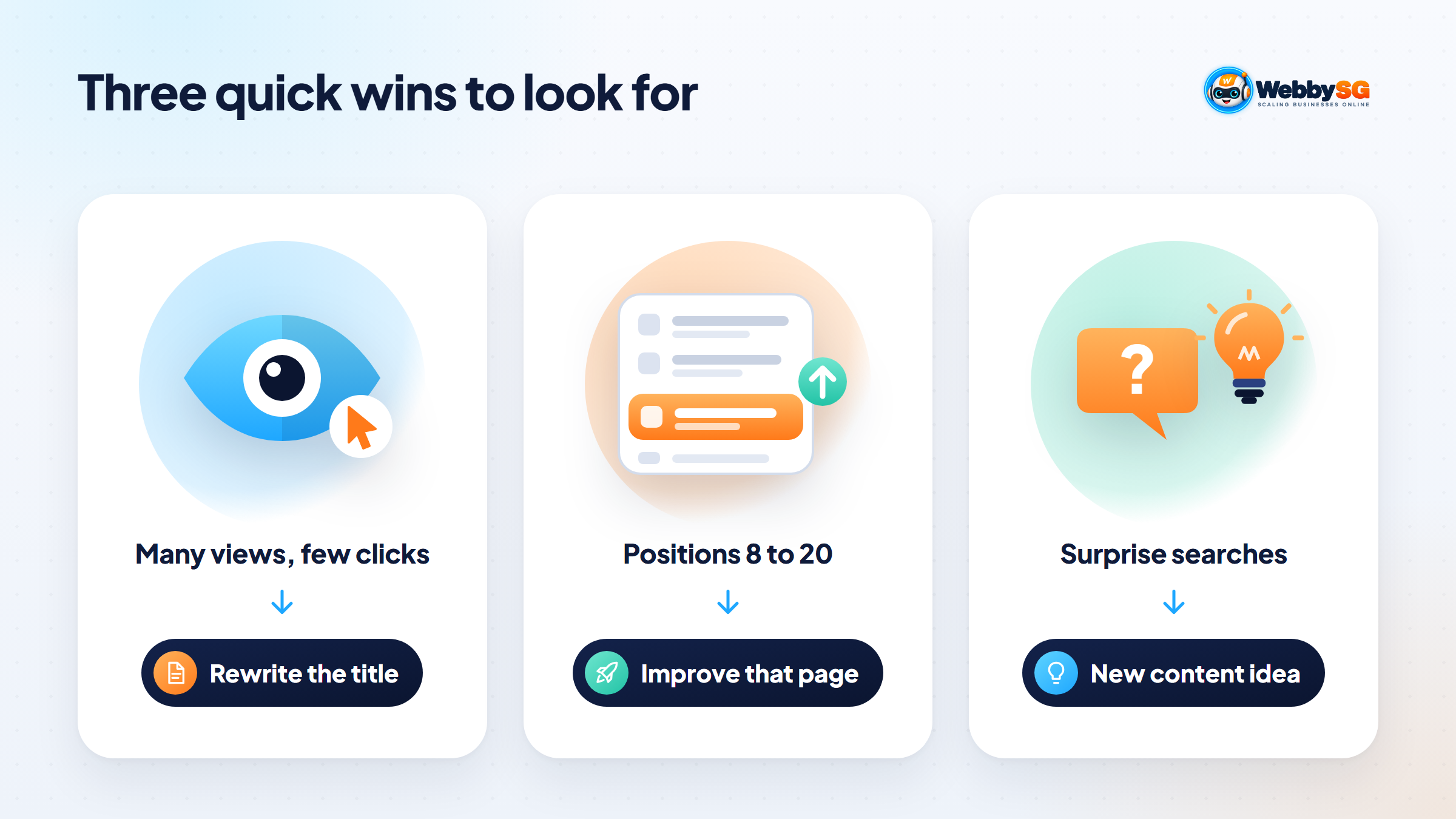
Three quick-win checks:
- High impressions, low CTR. Filter the Pages tab by impressions. Pages that appear often but get few clicks usually need a clearer title and meta description that match the search.
- Position 8 to 20. Queries where you sit at the bottom of page one or on page two are often the easiest to move. Say an aircon servicing company sees "aircon chemical wash price" at position 11: adding a clear price section to that service page and linking to it from the homepage is a quicker win than writing a new article.
- Queries you did not expect. If a page ranks for a service or location you do not cover well, that is a content idea.
Compare date ranges (for example, the last 28 days with the previous 28) to spot pages gaining or losing clicks. For local businesses, filtering by country and device helps too; our local SEO guide for Singapore covers what to do with location-based searches.
Understanding the Page indexing report
The Page indexing report shows how many of your URLs are indexed and lists the reasons others are not. Google's Page indexing report help says most sites have some unindexed URLs and you should not expect every URL to be indexed. What matters is that your important pages are.
| Status | What it means | Action |
|---|---|---|
| Crawled - currently not indexed | Google visited but chose not to index the page | If it is important, improve its content and internal links |
| Discovered - currently not indexed | Google knows the URL but has not crawled it yet | Usually wait; link to it from important pages |
| Duplicate without user-selected canonical | Google treats it as a copy and picked another version | Fine if expected; otherwise set a canonical tag |
| Excluded by 'noindex' tag (URL marked 'noindex') | The page tells Google not to index it | Fine if deliberate; remove noindex if not |
| Page with redirect | The URL redirects elsewhere | Normal after a redesign |
| Not found (404) | The page no longer exists | Redirect it if the page moved; ignore if deleted on purpose |
Use URL Inspection on any important page to see its status and, after a fix, click Request indexing. Google states that requesting a crawl does not guarantee inclusion, that crawling can take from a few days to a few weeks, and that repeated requests for the same URL will not make it faster.
Core Web Vitals, HTTPS and manual actions
- Core Web Vitals groups your URLs as Good, Needs improvement or Poor for loading, responsiveness and visual stability, using real-user data. Small sites may not have enough traffic for data to show. Fixes are usually images, scripts, theme and hosting.
- HTTPS shows whether your pages are served securely. Any HTTP pages here usually point to a missing redirect or mixed content.
- Security issues and Manual actions should both say no issues detected. If either shows a problem, deal with it first: it can remove pages from search.
If Core Web Vitals or security keep coming up, regular website maintenance usually prevents most of them.
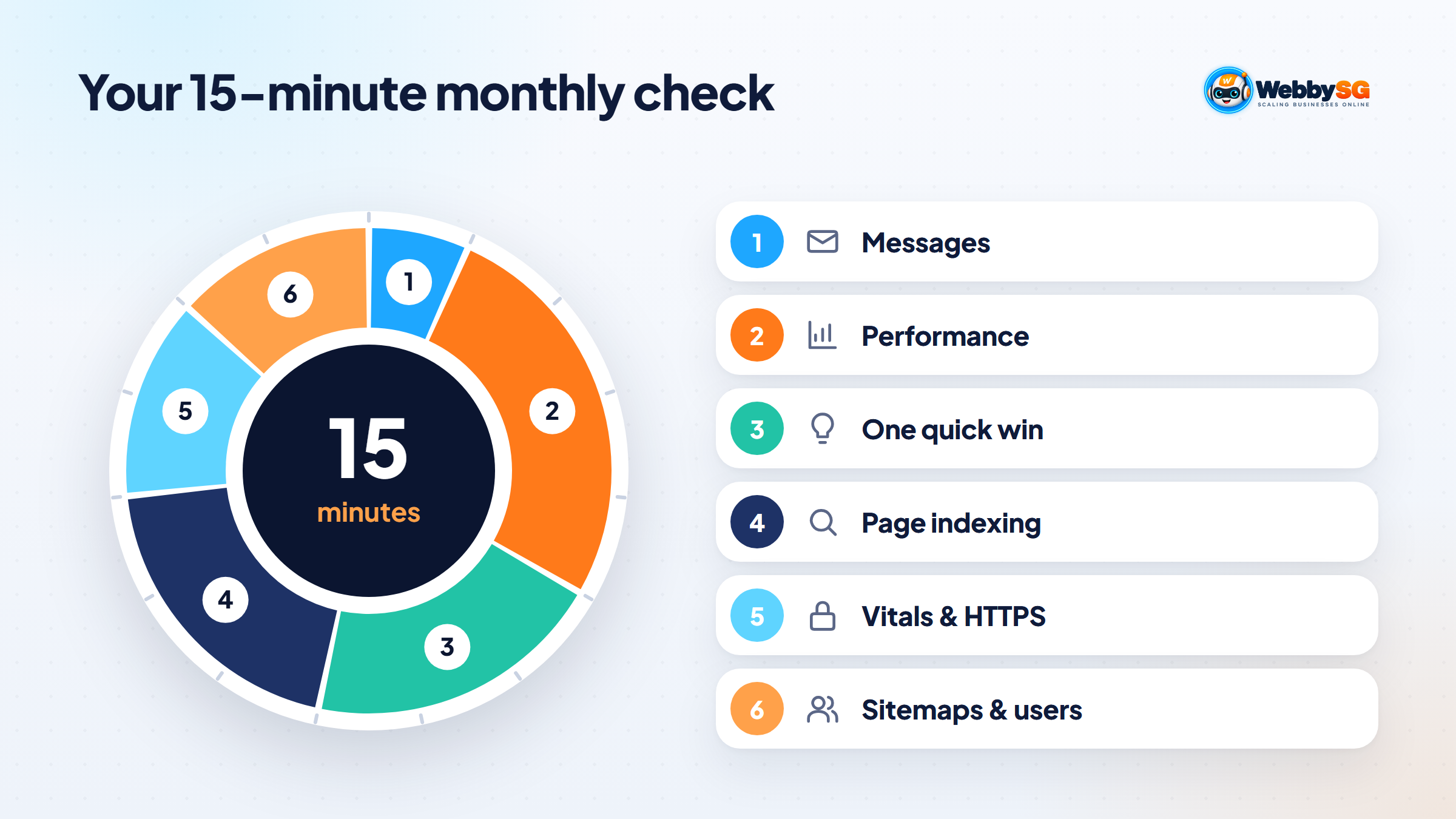
A 15-minute monthly Search Console routine
- Check messages and alerts (1 minute): any new security, manual action or indexing emails.
- Compare Performance month on month (4 minutes): last 28 days against the previous 28, by Pages. Note big drops and gains.
- Pick one quick win (3 minutes): one page with high impressions and low CTR, or a query in positions 8 to 20. Add it to your to-do list.
- Scan Page indexing (3 minutes): has the indexed count dropped? Are any important pages in a not-indexed group?
- Check Core Web Vitals and HTTPS (2 minutes): any new Poor or HTTP URLs?
- Check sitemaps and users (2 minutes): sitemap status is Success, and only current team members and vendors have access.
Getting help with Search Console and SEO
Search Console tells you where the problems and opportunities are; fixing them is the work. If you find pages that will not index, falling clicks you cannot explain, or you simply want someone to own the monthly routine, our SEO services include Search Console monitoring and the fixes that follow. You can also contact us to check who currently owns your property.
Frequently asked questions
Is Google Search Console free?
Yes. Search Console is a free Google service, and you only need a Google account and access to your website or DNS to verify it. There is no paid version, and you do not need to sign up for it to appear in Google Search results.
What is the difference between Search Console and Google Analytics?
Search Console shows what happens in Google Search before someone visits: queries, impressions, clicks, positions and indexing. Google Analytics 4 shows what visitors do on your site from every channel, such as pages viewed and enquiries made. Linking the two lets you see search queries alongside on-site behaviour.
How long does Search Console take to show data?
Some reports fill in soon after you verify a new property, while others take a few days. The newest Performance data is preliminary and can change for a few hours. Indexing changes take longer, because Google says crawling can take from a few days to a few weeks.
Does requesting indexing make Google rank my page?
No. Requesting indexing in URL Inspection only asks Google to crawl the page again. Google says it does not guarantee the page will be included in results, let alone rank well. Ranking depends on the page's content, relevance and links.
How do I give my web agency access without giving up ownership?
Keep a Google account your company controls as a verified owner, ideally through a DNS record. Then go to Settings, Users and permissions and add the agency as a full user, which lets them use most tools but not add or remove users. When the engagement ends, remove their access.