WordPress Security Checklist for Singapore Businesses
A practical WordPress security checklist for Singapore businesses: updates, logins, backups, hosting, and what the PDPA expects if your site is breached.
A WordPress security checklist for a business site comes down to five habits: keep WordPress, plugins, themes and PHP updated; remove what you do not use; protect every login with a strong password and two-step authentication; host on a server with HTTPS and a firewall; and keep backups that you have actually restored. WordPress itself is maintained by a large security team, so the weak points are usually around it: outdated plugins, weak passwords and forgotten admin accounts. For Singapore businesses, there is one more reason to get this right: if your site collects personal data through forms or a shop, the PDPA expects you to protect it and, in some cases, to report a breach within days.
This checklist is written for owners and managers, not developers. Each section says what to check, and the last section splits the work between you, your developer and your host.
In short
- Update core, plugins and themes promptly, and run a supported PHP version. WordPress currently recommends PHP 8.3 or greater.
- Delete plugins, themes and user accounts you no longer use.
- Use unique strong passwords, two-step authentication and the lowest user role each person needs.
- Keep automatic off-site backups, and test a restore at least once.
- Under the PDPA, a breach affecting 500 or more people, or likely to cause significant harm, must be reported to the PDPC within 3 calendar days of deciding it is notifiable.
Why WordPress sites get hacked
WordPress powers a very large share of the web, so automated attacks target it constantly. Most of these attacks are not personal. Bots scan thousands of sites looking for known weaknesses and try them all. The usual ways in are:
- Outdated plugins and themes with publicly known vulnerabilities
- Weak or reused passwords, guessed by brute-force login attempts or taken from other breaches
- Abandoned software: plugins no longer maintained by their developers, or "nulled" premium plugins downloaded from unofficial sites
- Old admin accounts belonging to former staff or agencies
- Insecure hosting: outdated server software, shared accounts with no isolation, or no backups
WordPress's own hardening guide puts it plainly: keep everything updated, delete plugins you do not use, and never install plugins or themes from untrusted sources.
Start with an inventory: plugins, users and access
On older business sites it is common to find a plugin or admin account that nobody remembers adding. Spend 30 minutes listing:
- Plugins. Name, whether active, last updated date, and whether you still need it. Deactivated plugins still sit on the server, so delete the ones you do not use.
- Themes. Keep your active theme and one default WordPress theme as a fallback. Delete the rest.
- User accounts. Every administrator, editor and author. Remove former staff, freelancers and agencies who no longer work on the site.
- Access outside WordPress. Hosting control panel, FTP or SFTP, database, domain registrar and DNS. Who has the logins, and are they in the company's name?
- Personal data collected. Contact forms, newsletter sign-ups, bookings, orders. Where is that data stored, and for how long?
Keep this list in a shared document and review it every quarter.
Updates: core, plugins, themes and PHP
Updates fix known security holes, so delaying them leaves the door open. According to WordPress's upgrade documentation, WordPress automatically applies minor core releases, which include maintenance and security fixes, by default. Major releases, plugins and themes are your responsibility unless you switch on automatic updates for them.
| What | How often to check | Notes |
|---|---|---|
| WordPress core (minor releases) | Automatic | Leave automatic minor updates on |
| WordPress core (major releases) | Within a few weeks of release | Test on a staging copy first if the site is complex |
| Plugins | Weekly | Update security releases straight away; replace plugins that have not been updated in a long time |
| Themes | Monthly | Use a child theme so updates do not wipe your changes |
| PHP version | Twice a year | WordPress recommends PHP 8.3 or greater; your host changes this |
WordPress's requirements page currently recommends PHP 8.3 or greater, MariaDB 10.11 or greater or MySQL 8.4 or greater, and HTTPS support. Older PHP versions stop receiving security fixes, so ask your host which version your site runs.
Before any large update, take a backup. For sites with online payments or many plugins, test updates on a staging copy first.
Logins and user roles
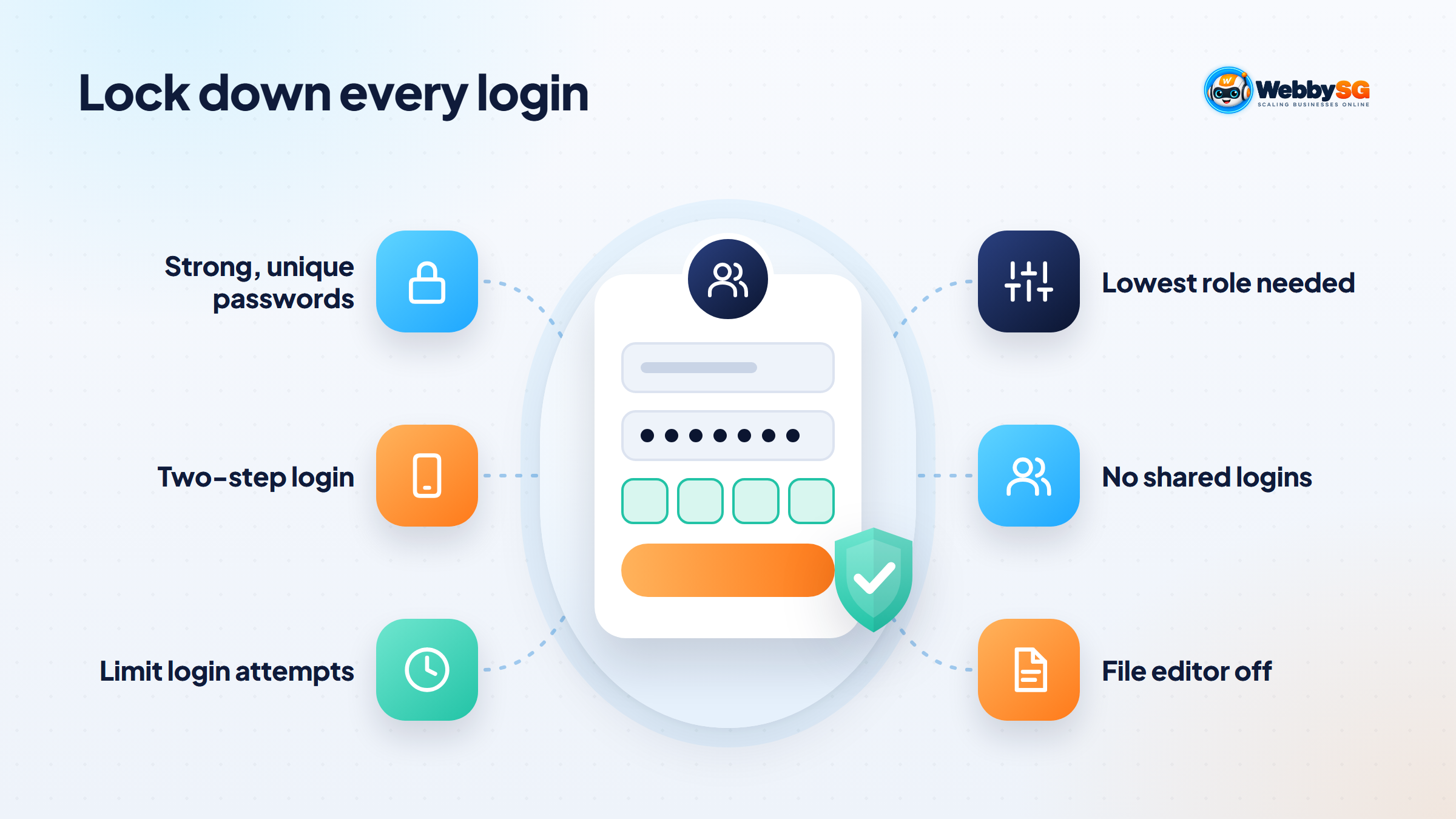
- Strong, unique passwords for every account, stored in a password manager. Never reuse your email password for WordPress.
- Two-step authentication for every administrator, and ideally every user who can publish.
- Limit login attempts so bots cannot guess passwords endlessly. Many security plugins and hosts include this.
- Give the lowest role that works. A writer needs Author or Editor, not Administrator. Keep administrators to one or two named people.
- No shared logins. Each person gets their own account, so you can remove access individually and see who changed what.
- Turn off the file editor. Ask your developer to add DISALLOW_FILE_EDIT to the site's configuration, which stops anyone editing theme and plugin code from the dashboard if an admin account is compromised.
Hosting, SSL and firewall basics
Your host handles the layer below WordPress. Cheap shared hosting is not always insecure, but it gives you less control and less help when something goes wrong. Check that your host provides:
- HTTPS with a valid SSL certificate on every page, with HTTP redirected to HTTPS
- Current server software, including supported PHP and database versions
- A web application firewall (from the host, a service such as a CDN, or a security plugin) to block common attacks and malicious bots
- Account isolation, so a hacked site on the same server cannot reach yours
- SFTP rather than plain FTP, and strong passwords on the hosting panel and database
- Daily backups stored separately from the server, with an easy restore
- Malware scanning and a clear process if your site is flagged
Our guide to web hosting in Singapore covers what to compare between hosts.
Backups you have actually restored
Plenty of owners only discover their backups were incomplete on the day they need them. A good backup set-up:
- Backs up both the files (themes, plugins, uploads) and the database (pages, posts, orders, form entries).
- Runs automatically: daily for most business sites, more often for busy online stores.
- Is stored off the server, in a separate account or cloud storage, so a hacked or failed server does not take the backups with it.
- Keeps several versions, such as 30 days of history, because infections are often discovered days after they happen.
- Is tested: restore it to a staging site at least twice a year and check the site works.
Backups also contain personal data, so protect them like the live site: limit access and avoid keeping them longer than you need.
Monitoring and what to do if you are hacked
Set up basic monitoring so you find out before your customers do:
- Uptime monitoring that alerts you if the site goes down
- A security plugin or host scanner that checks for malware and changed files
- Alerts for new administrator accounts and failed login spikes
- Google Search Console, which notifies you if Google detects malware or hacked content
If the site is hacked:
- Contain it. Put the site in maintenance mode or ask your host to take it offline if it is serving malware or stealing data.
- Change every password: WordPress admins, hosting, database, SFTP and email accounts linked to the site.
- Find out what happened and what data was affected. Check logs, recently changed files and new users. Note the date you suspected a breach; the PDPA timelines below may apply.
- Clean or restore. Restore a clean backup from before the hack, or have a specialist clean the site. Then update everything and close the hole that let the attacker in.
- Request a review in Google Search Console if Google flagged the site.
- Record what you did, including dates, decisions and who was involved.
PDPA and Singapore context for site owners
If your website collects personal data, such as names, phone numbers and emails from an enquiry form, or addresses and order details from a shop, the Personal Data Protection Act applies. Its protection obligation expects you to make reasonable security arrangements for that data. An unpatched, unmonitored website is hard to defend as reasonable.
The PDPC's Guide on Managing and Notifying Data Breaches sets out the breach notification steps:
- Once you have credible grounds to believe a data breach has occurred, take reasonable and quick steps to assess whether it is notifiable, within 30 calendar days.
- A breach is notifiable if it results in, or is likely to result in, significant harm to the people affected, or if it involves the personal data of 500 or more individuals.
- Notify the PDPC as soon as practicable and within 3 calendar days of determining that the breach is notifiable.
- If significant harm is likely, also notify the affected individuals, at the same time as or after notifying the PDPC, unless an exception applies.
A hypothetical example of how that plays out: a renovation firm's developer finds on a Monday that an outdated form plugin let someone download the stored enquiries, about 800 names, phone numbers and emails. Because more than 500 people are affected, the breach is notifiable whatever the level of harm. If the firm concludes that on Tuesday, the PDPC must hear by Friday at the latest. Whether each customer must also be told depends on whether significant harm is likely, which is where the firm needs advice rather than guesswork.
If a developer or host processes data for you, your agreement should require them to tell you quickly about any breach on their side.
The Cyber Security Agency of Singapore also runs the Cyber Essentials certification, which helps organisations put fundamental cybersecurity measures in place. Many items on this checklist, such as keeping an inventory, updating software, controlling access and keeping backups, overlap with what it covers. This is general information, not legal advice.
WordPress security checklist: who does what
Security fails most often when everyone assumes someone else is doing it. Agree the split in writing.
| Task | Owner | Developer or maintenance provider | Host |
|---|---|---|---|
| Keep the inventory of users, plugins and logins | Responsible | Helps | None |
| Remove former staff and agency accounts | Responsible | Helps | None |
| Core, plugin and theme updates | Approves | Responsible | Minor core updates (some managed hosts) |
| PHP and server software | None | Checks compatibility | Responsible |
| SSL certificate and firewall | None | Configures in WordPress | Responsible |
| Backups and restore tests | Checks they exist | Tests restores | Runs daily backups |
| Monitoring and malware scans | Receives alerts | Responsible | Server-level scanning |
| PDPA breach assessment and notification | Responsible (with your DPO) | Provides technical facts | Provides logs |
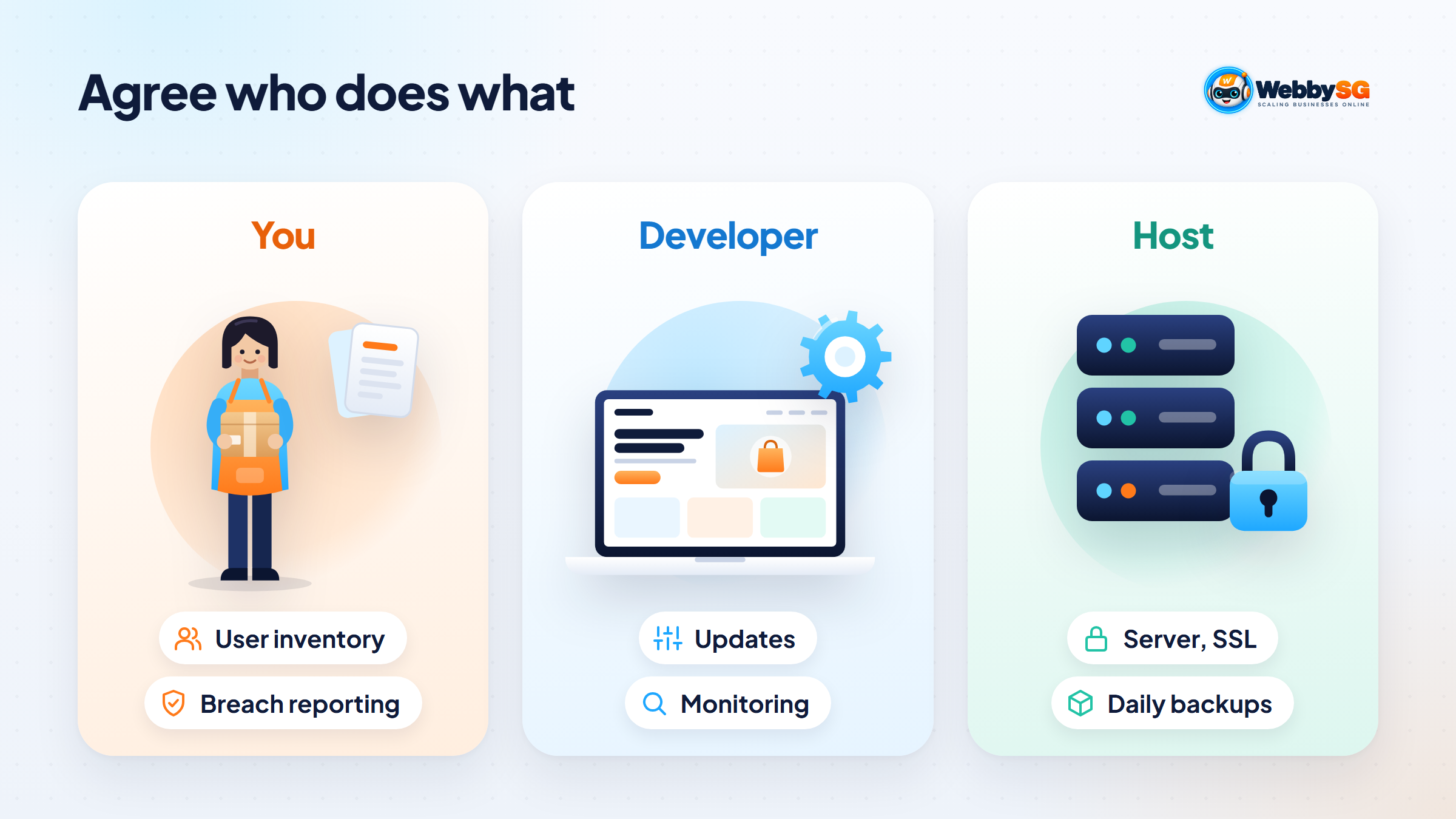
If nobody in your team has time for the developer column, a maintenance plan covers it. Webby SG's website maintenance service handles updates, backups and monitoring for WordPress sites, and our WordPress website design page explains how we build sites to be easier to keep secure. If your site is due for a rebuild rather than a patch, see our web development service, or ask us for a security check.
Frequently asked questions
Is WordPress secure enough for a business website?
Yes, when it is maintained. WordPress core has a dedicated security team and applies minor security releases automatically by default. The common weak points are outdated plugins, weak passwords and poor hosting, so how you maintain the site matters more than the platform choice.
Do I need a paid security plugin?
Not always. Many hosts include a firewall, malware scanning and login protection, and free plugins cover the basics. A paid plugin or service is worth considering for online stores, sites that hold a lot of personal data, or when nobody is checking the site regularly. Avoid stacking several security plugins, which can conflict.
Should I turn on automatic updates?
Keep automatic minor core updates on, as WordPress does by default. Automatic plugin updates are sensible for well-maintained plugins on simple sites. For online stores or sites with custom code, have someone apply updates on a schedule and test them, because an update can occasionally break a feature.
How often should I back up my site?
Daily for most business websites, and more often for busy online stores where new orders come in throughout the day. Keep several weeks of versions, store them off the server, and test a restore at least twice a year.
Do I have to report a website breach in Singapore?
If the breach involves personal data and is likely to cause significant harm to the people affected, or involves the personal data of 500 or more individuals, you must notify the PDPC within 3 calendar days of determining it is notifiable. You should assess a suspected breach within 30 calendar days. Where significant harm is likely, you must also notify the individuals affected, unless an exception applies.